Manage your subscription
PitchGhost allows you to upgrade, downgrade, or cancel your subscription at any time
Written By Marc Frankel
Last updated Almost 2 years ago
Your PitchGhost subscription is super flexible, so you can always make changes to your plan as your business needs evolve.
How to view or switch plans
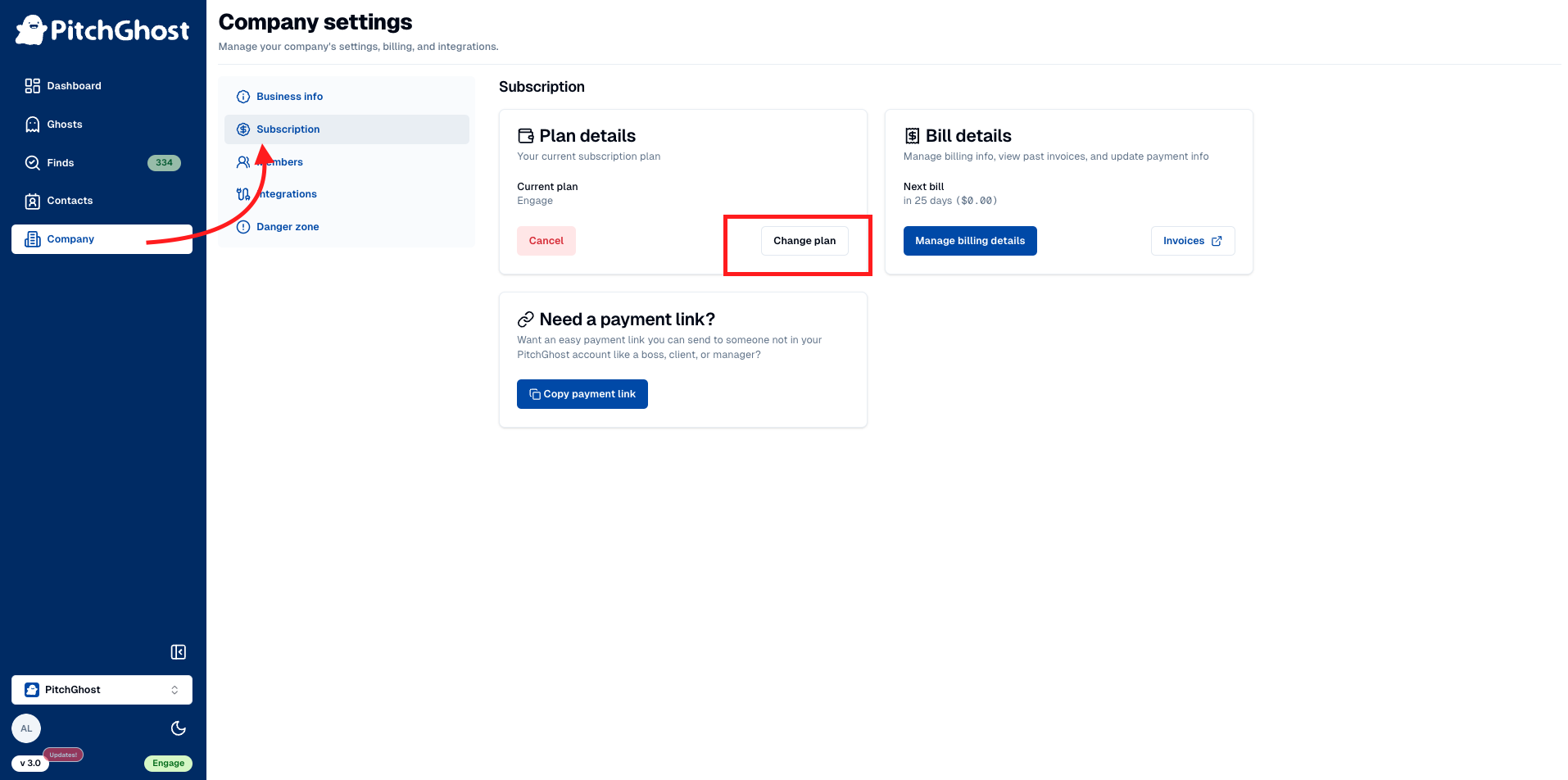
Sign in to your PitchGhost account.
Go to the
Companytab, then selectSubscription.Under
Plan details, clickChange planto explore other options.Choose
Switchon the desired plan to make the change.
Billing adjustments when switching plans
Billing is adjusted immediately when you switch plans. For example, if you downgrade mid-month from a higher-cost plan to a lower-cost one, you'll pay the prorated difference immediately, which also resets your billing cycle to the switch date. If upgrading, you pay the difference, less any credit from your current plan's payment towards the new plan's cost.
Permission to make subscription changes
Only team members with the permission level of “owner” have permission to make changes to your subscription.
Downgrading from the Engage to Find tier
Before downgrading, you must remove any team members and disable integrations as these features are not supported on the Find plan.
Shareable payment links
If you need to have someone else in your company pay for your PitchGhost subscription, you can easily send them a payment link which they can use without creating a PitchGhost account.
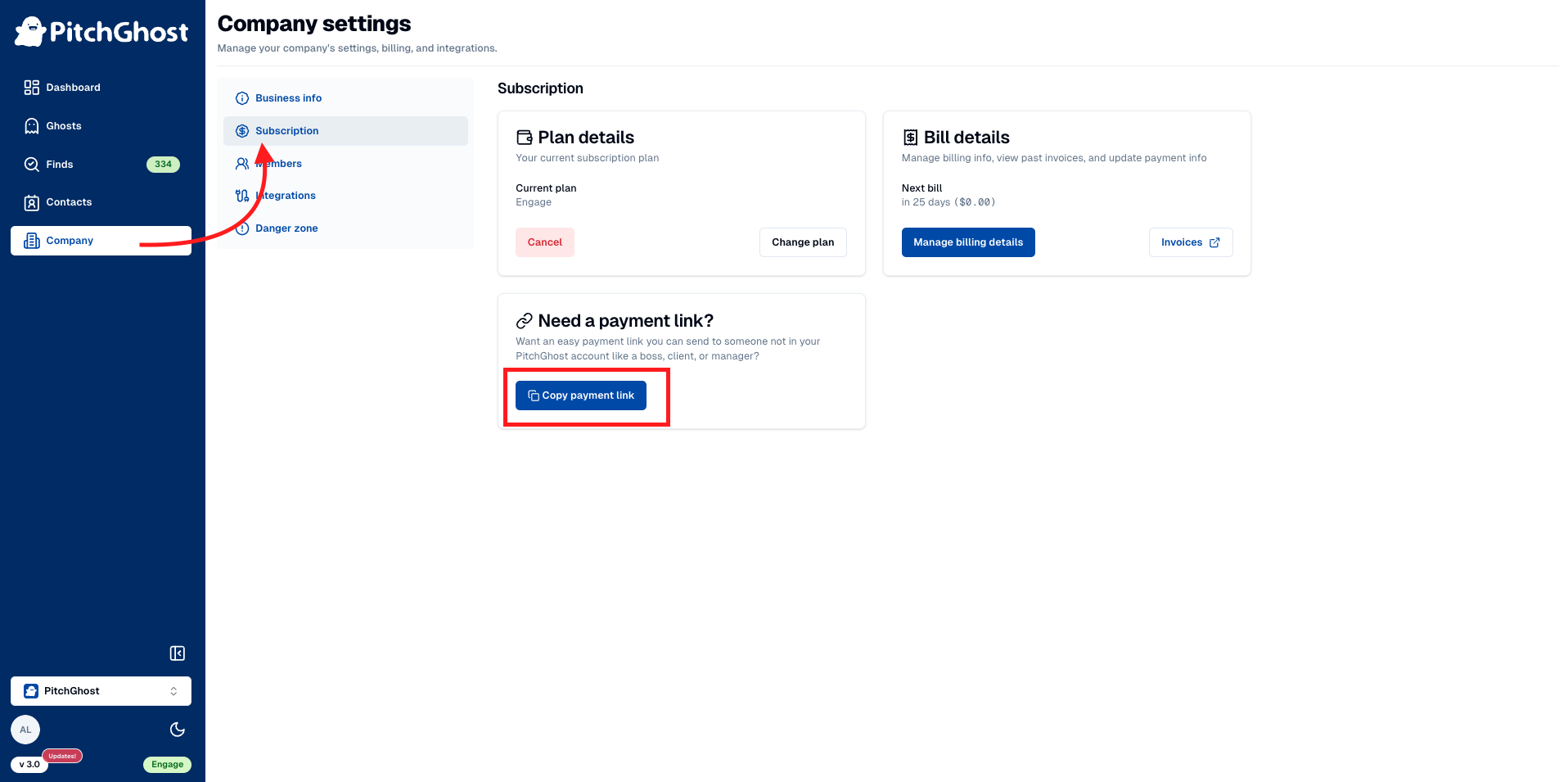
Log into your PitchGhost account.
Navigate to the
Companytab on the left-hand menu.Select
Subscription.Click on
Copy payment linkfound in the 'Need a Payment Link?' section.