Managing contacts page
Personalize your contacts page with multiple actions
Written By Hazel Kim
Last updated About 1 year ago
Features
Delete
Block
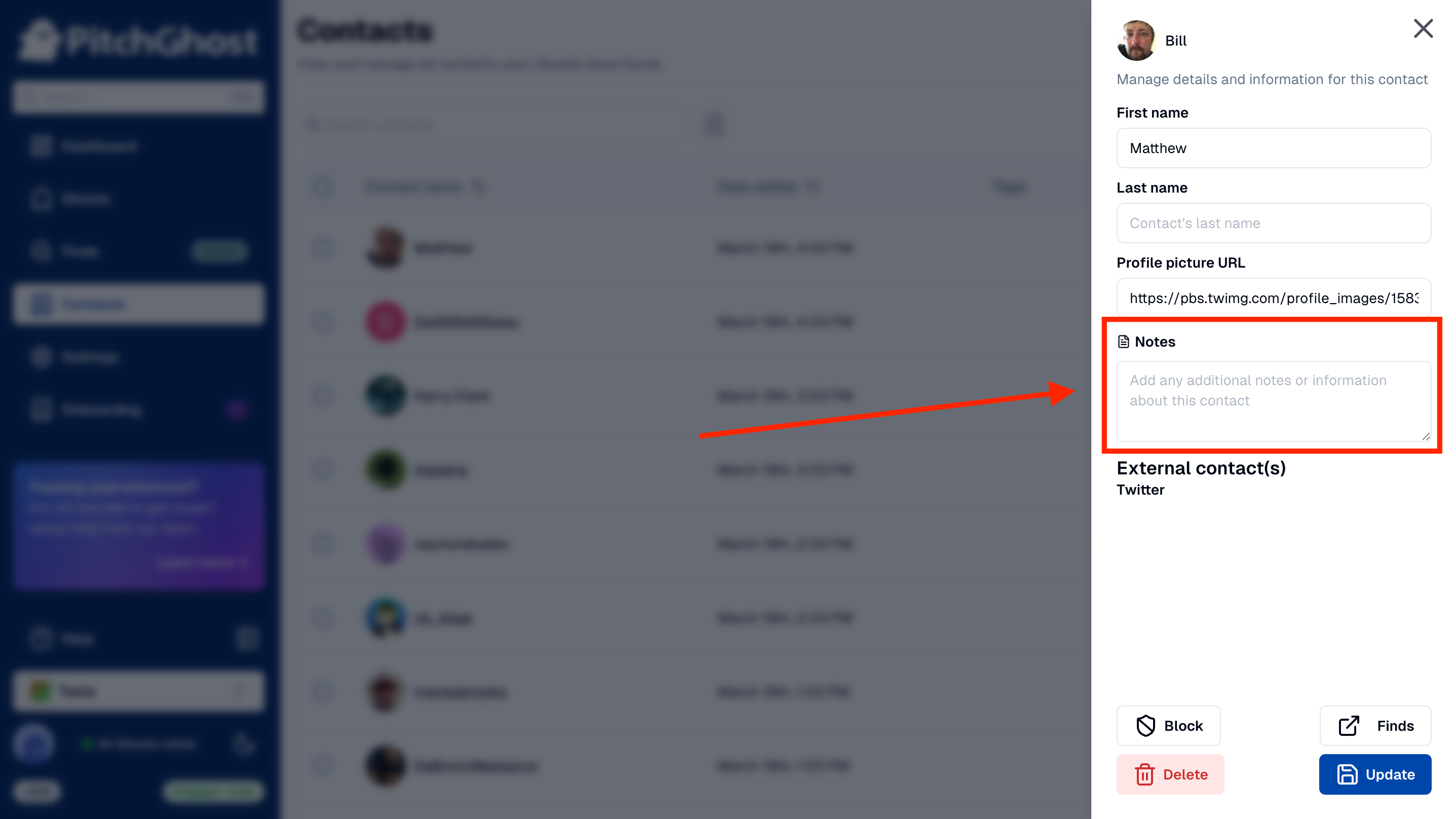
Add notes
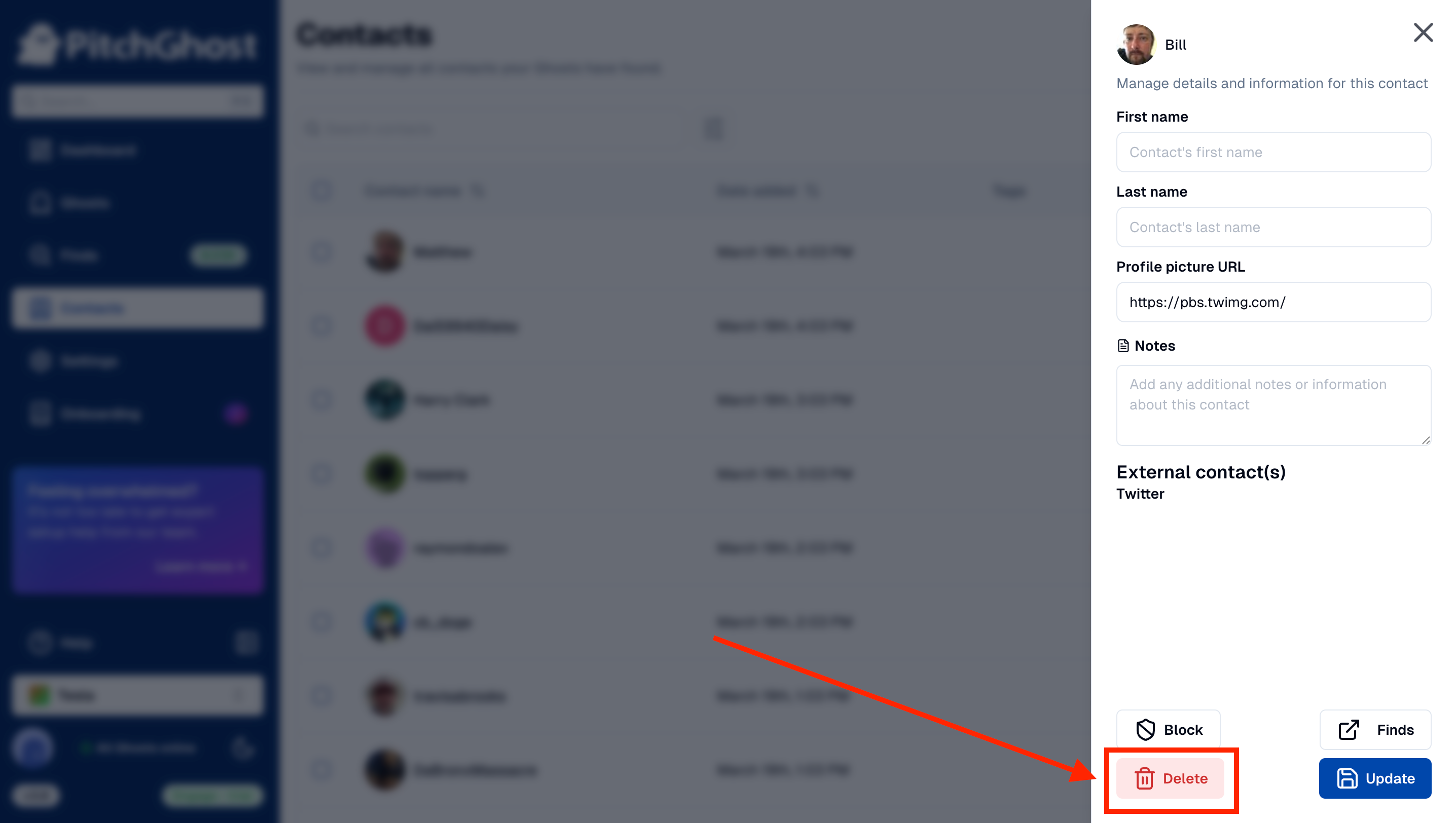
Deleting contacts
You can delete contacts from within the Contact page. Deleting a Contact does not automatically delete the Finds from that poster.
Go to Contacts page
Click on the contacts you wish to delete
Click the
deletebutton located at the bottomActions cannot be undone once the button is clicked again
Blocking and unblocking a contact
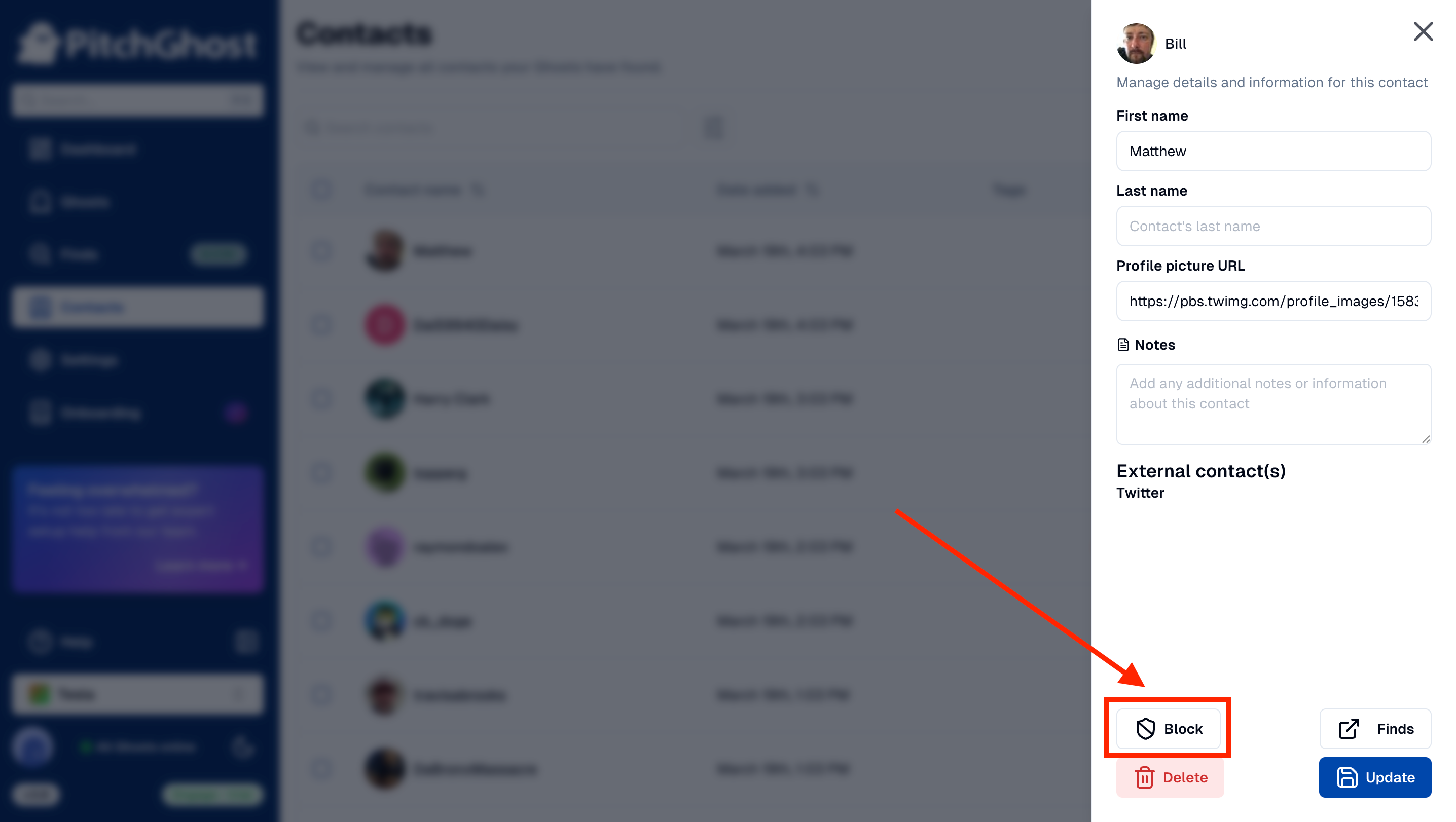
If you have any user or accounts that you no longer want to see posts from (for example, if you don’t want to see posts from your own brand pages), you can block the poster from being picked up in future Finds from PitchGhost. This does not block the poster on your respective social media accounts.
Go to Contacts page
Click on the contact(s) you want to block
Click the
blockbutton located at the bottomA red block emoji will appear next to the contact’s name indicating it’s blocked
If you want to unblock, click the block button again and check the red block emoji is no longer there
Adding notes to a contact
Leave notes on any contact via the following steps:
Go to Contacts page
Click on the contacts you wish to add notes to
Write any notes or additional information about the contacts
Click update on the right bottom to save the changes