Twitter (X)
A quick guide to start automatically finding targeted social media content on Twitter (X), in under 5 min
Written By Marc Frankel
Last updated Almost 2 years ago
Create customized automations to retrieve content from Twitter (X) with PitchGhost’s Twitter (X) Ghosts. Available on all pricing plans.
Automatically finding Twitter (X) content with PitchGhost
Target and discover specific Tweets automatically using PitchGhost's advanced search capabilities. Simply describe what you are looking for in your Ghost.
Engaging directly with Twitter (X) content from PitchGhost
Level up your Twitter outreach strategy by responding directly from PitchGhost, available on our Engage subscription. Connect your Twitter account(s) directly to PitchGhost to seamlessly interact with tweets, whether you want to reply, like, or quote tweet, DM, or send a follow request!
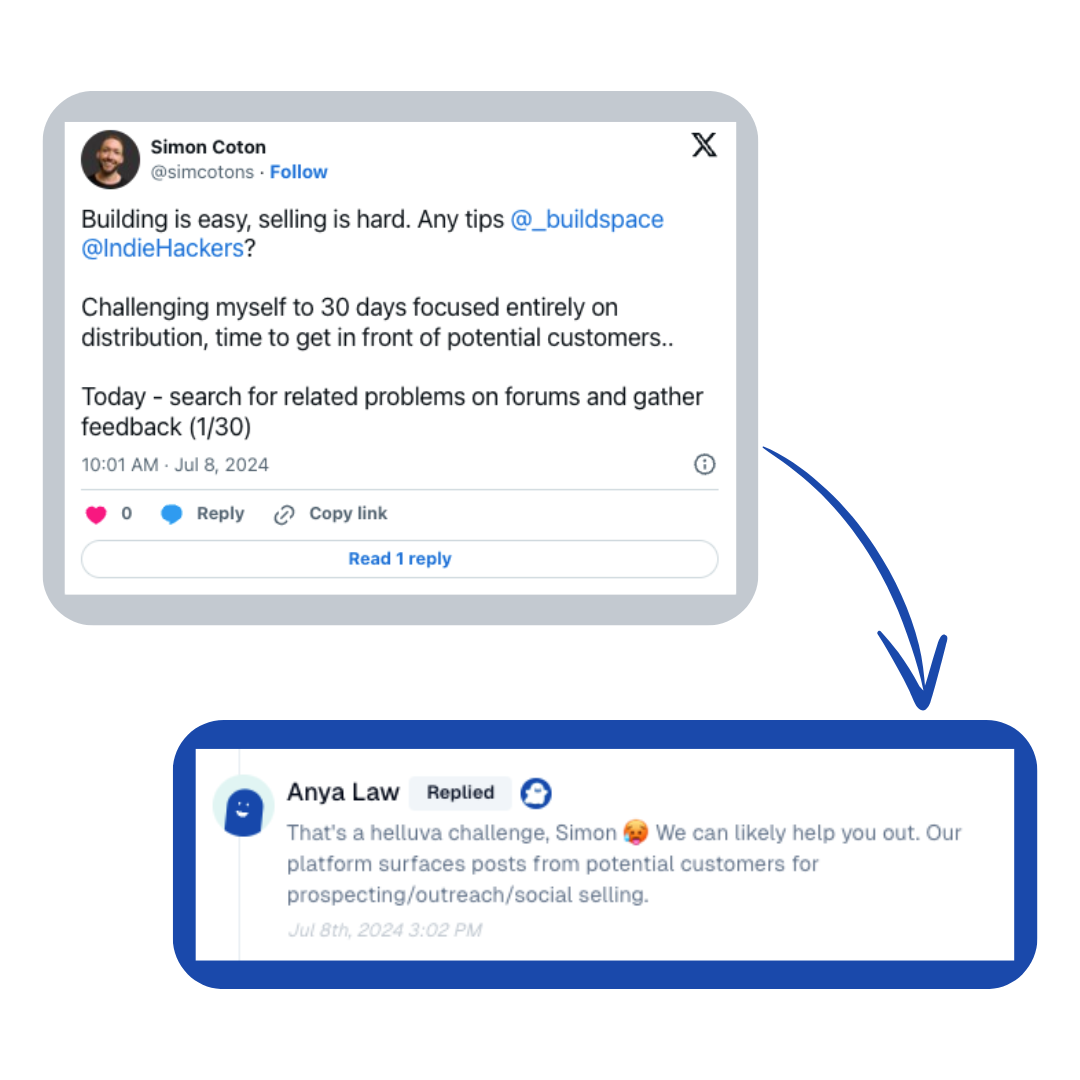
PitchGhost does not post automatically without your permission — it provides the Find (What is a Find?), and you decide how and when to engage.
For those on our Find plan, you can still manually engage with content on Twitter itself.
Data included with our Twitter (X) Finds
A Find from Twitter (X) comes with the public information available from each Tweet, including username, profile name, and the date posted.
How to get started with Twitter Ghosts
Part 1: Create an account (Est 2 mins)
Navigate to PitchGhost and enter your business’s website

PitchGhost will then begin scanning your website and building out a custom model to best find content for you and better match your brand’s tone of voice.
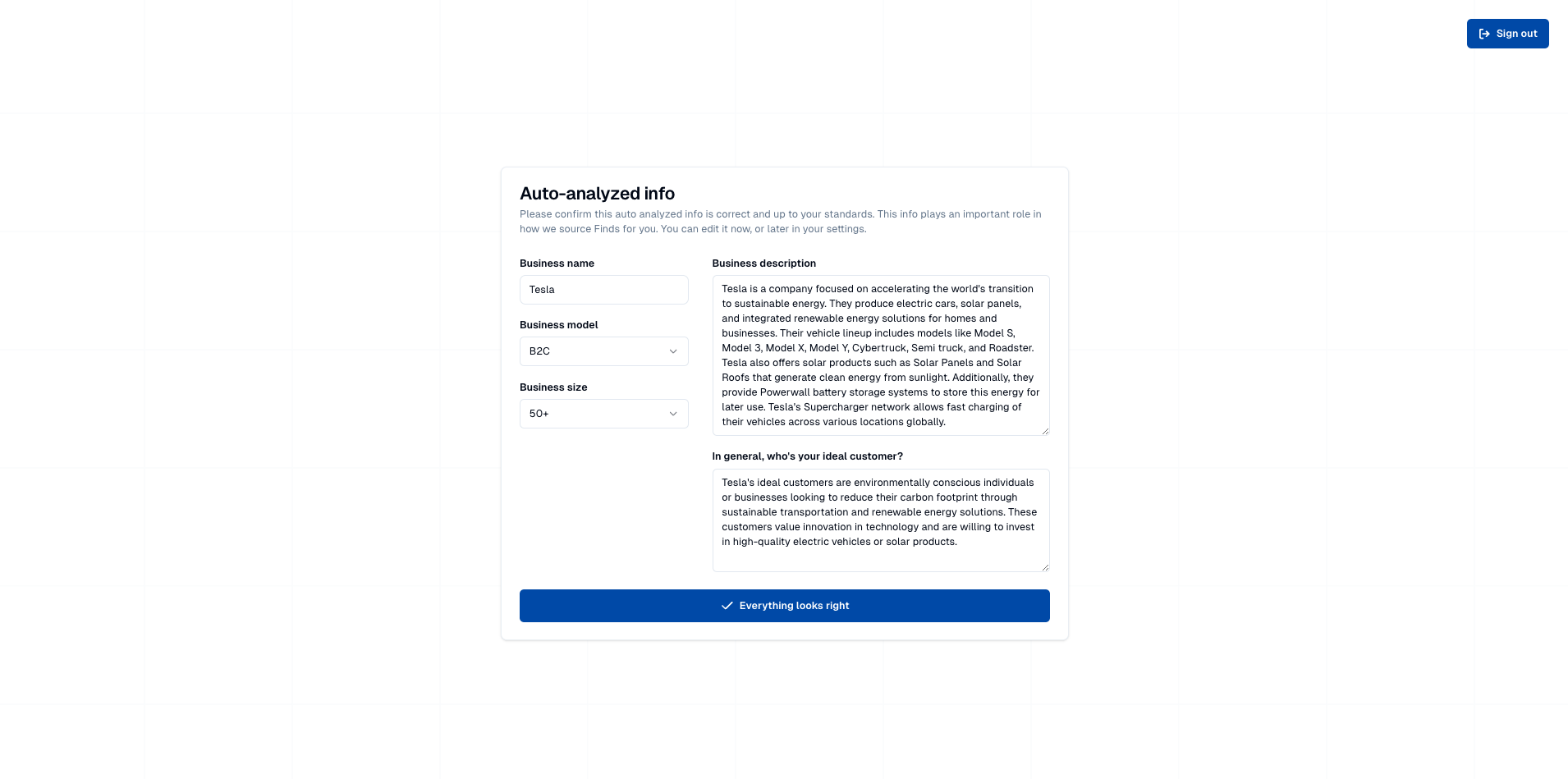
Once the scanning has finished make sure to double-check the analyzed info
Finally, select the subscription that makes sense for your company. All subscriptions come with a 7-day free trial.
Part 2: Create a Twitter Ghost (Est 3 mins)
Navigate to the Ghost tab → Create new Ghost → Tweet finder

Select Automatically as the creation method. (For more info Automatic vs manual Ghosts)

Write out a descriptive goal (Ghost Goals) for the Ghost. The more descriptive the better.

Finally, hit Generate Ghost and double-check your generated search queries (Search queries). Once everything looks up to your stands go ahead and click Save + Scan on the top right and watch your Finds pour in daily. Easy!